
- Go to your login page.
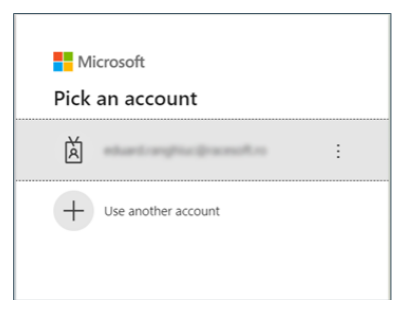
- Select a Global Admin account that will be used for creating tenant/onboarding process (on incognito pages you will be asked to type user and password):
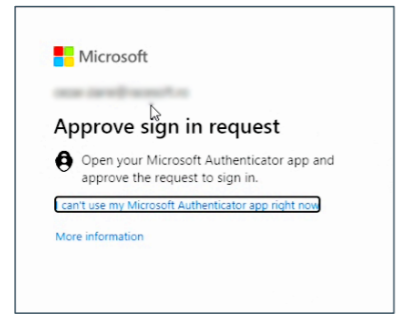
- If you have 2FA enabled, you will be asked to approve the sign in request.
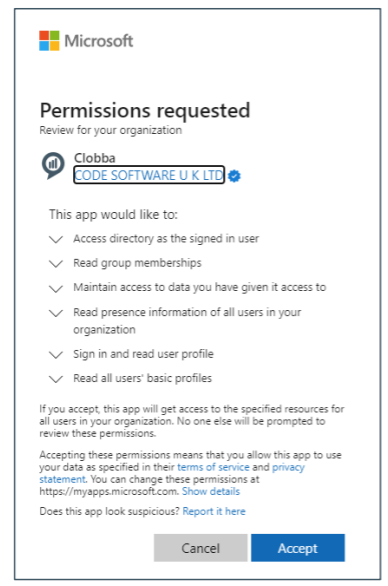
- After approving the request, the following screen will appear, prompting the user about the permissions that need to be granted. Check the box to agree and click accept to grant the permissions. NOTE: These are read-only permissions. Write permissions can be granted later on.
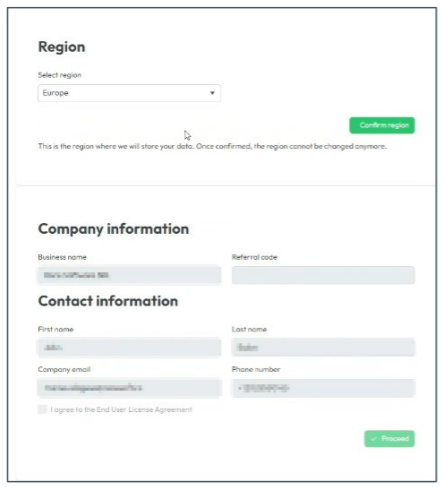
- Please select your region and confirm. Fill Contact Information (company information and email are filled automatically but can be edited). Business name will be the name of the tenant. Important: Check the box to agree to the terms of the End User License Agreement.
- A second permissions screen will appear, notifying you of the permissions that Clobba needs to function. Click "Give Consent."
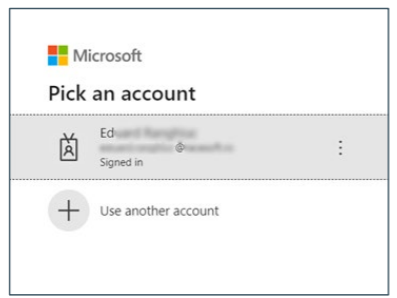
- Select user to grant permissions.
- Next screen will show information about which permissions will be needed.
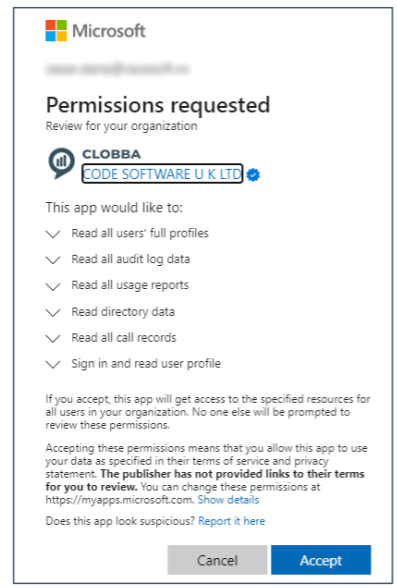
- After clicking Accept, you will be taken to the sync screen.
- For data sync and collection on the entire organization without a subset - click on the Sync entire organization and then hit Import entire organization button.
- For data sync and collection on a specific subset resource - Click on the Sync specific resources, provide the group that contains the specific agent's subset and click on Import specific resources button.
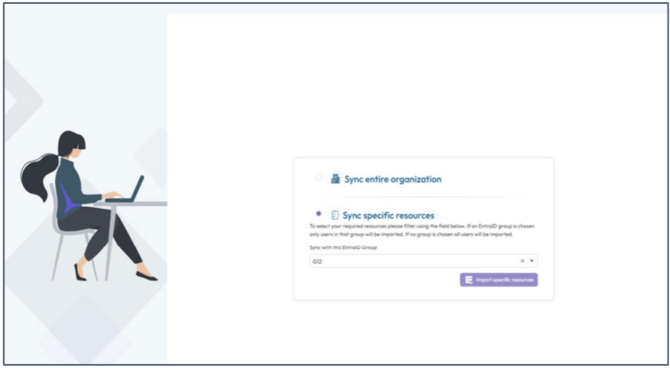
- The importing of your company data will begin which can take up to 24 hours depending on tenant size.
Call Queues - Azure Function Application Deployment Guide
- Ensure Call Queues module is enabled.
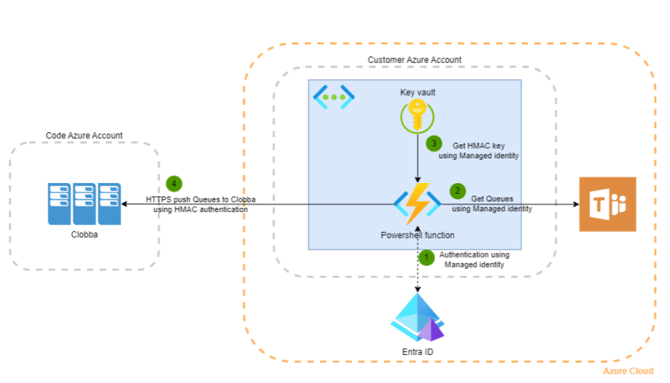
- Clobba Flex requires some Azure Functions to be deployed into the customer's Azure account to get the Calls in Queue or to get the list of resource accounts (Queues and Auto Attendants). The communication between the Azure Functions and Clobba Flex is done using HMAC authentication.
- On User login, if CQ module is enabled a notification is displayed informing the user that Azure functions need to be deployed.
- Click on the notification and you will be redirected to the Setup page.

- Click on "Deploy to Azure" button.

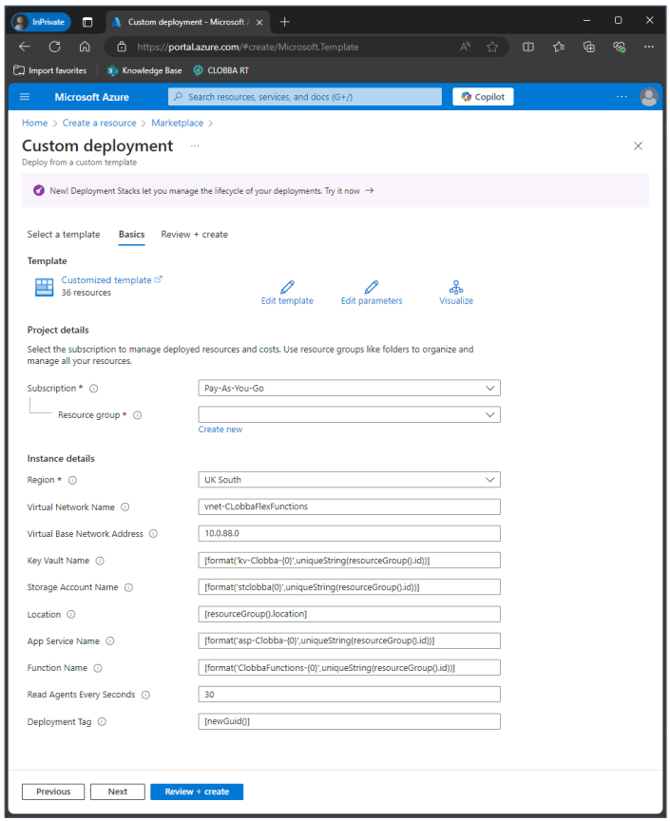
- When this button is pressed, the Azure Portal will be opened in a new tab, with a link to the Azure Functions deployment template (Json file).
- All the parameters are prepopoulated (example on next page) and the HMAC keys are embedded in the deployment template (Json file).
Note: This template deploys a Function Application with a "Flex Consumption" hosting plan. This hosting plan is supported only in the following regions: Australia East, East Asia, East US 1 & 2, North Europe, South Central US, Southeast Asia, Sweden Central, UK South, West US 2 & 3.
Permissions
8. After the function is deployed, it will still not work because it requires Teams Communications Administrator Azure AD role.
9. We can assign Teams Communications Administrator role to the Service Principal ID (Function's system managed identity) by calling Microsoft Graph.
10. Click on "Give permissions" button to finalize the setup.