
Getting Started
Aura eFax is a secure, fast and convenient alternative to a traditional fax machine. You are assigned one of its unique fax numbers, which connects to your email and lets you send and receive faxes as email attachments.
To begin, you will receive an Aura eFax “Welcome” email stating that your account has been activated. It also shows your fax number and your PIN (personal identification number), which you will need to access the online Aura eFax FAQs.
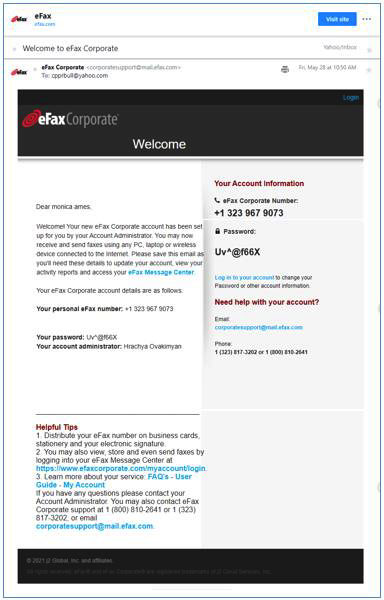
Example of the Aura eFax “Welcome” email [01-welcome-email.png]
Note: Please print and keep a copy of this email (with your login credentials) for future reference.
Your Aura eFax Account
Log Into Your Account
- Go to www.efaxcorporate.com and click Login at the top-right corner of the page.
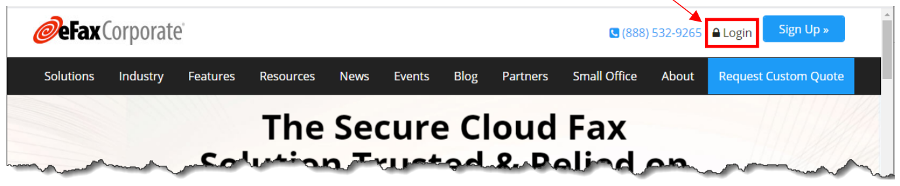
Login button on the website [02-login-button.png] - In the User Login dialog, enter the fax number (11 digits in the US, including the country code) and the PIN you received in your Aura eFax “Welcome” email (see Getting Started).
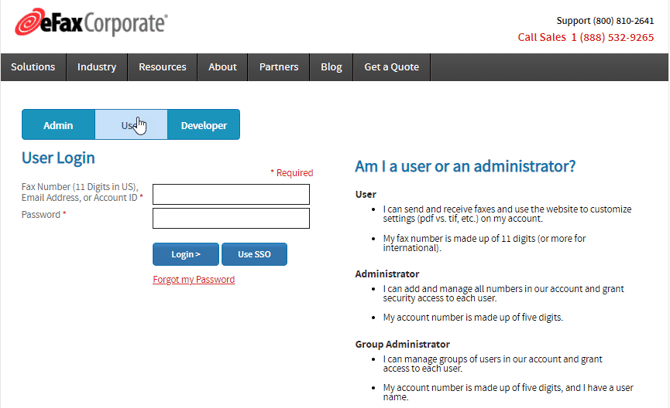
User Login dialog [03-user-login-dialog.png]
The Home > My Account page appears.
My Account Page
From the My Account page, you can view and send faxes, run reports, update your profile, set your account preferences, share large files, and contact help when you need it.
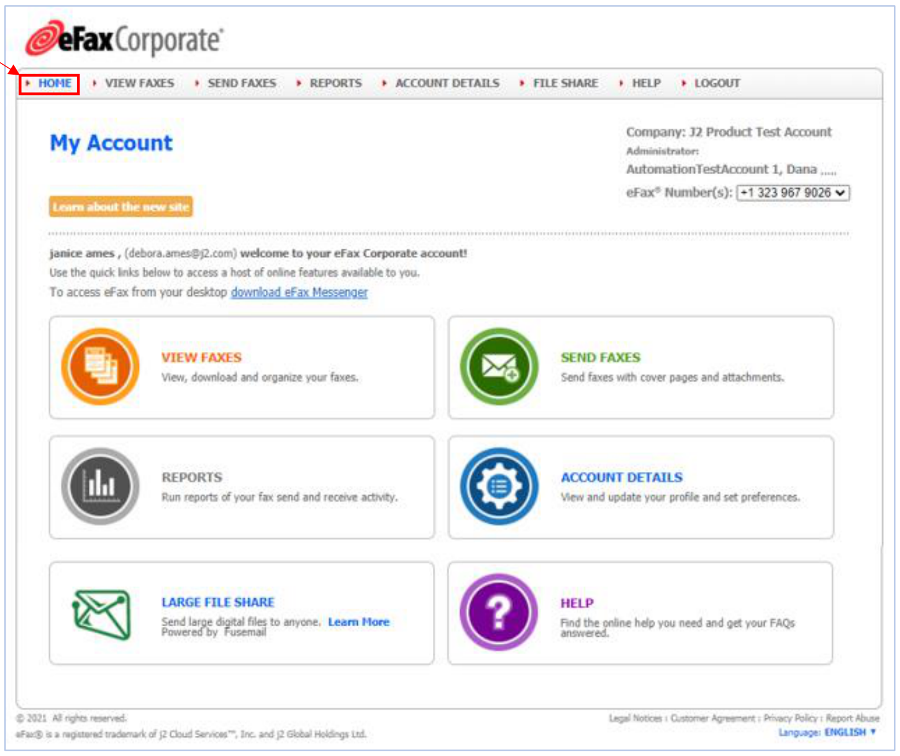
Home > My Account page [04-my-account-page.png]
View or Change Your Profile and Account Preferences
The online help has full details and instructions. As a quick start, to see or change your Aura eFax profile and/or account preferences:
- Click the Account Details tile on the My Account page.
- Click the appropriate Edit links on the Profile and Preferences tabs, as described below.
Account Details tile [05-account-details-tile.png]
Profile tab
Use the Profile tab to change:
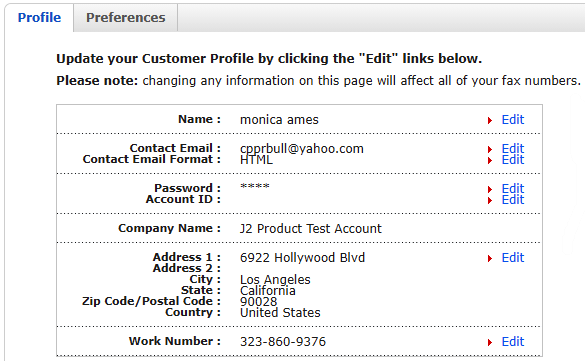
Account Details > Profile tab [06-account-details-profile-tab.png]
- Your name on your Aura eFax account
- Your contact email address. It is used to send service updates, password resets and administrative/billing emails and, if you wish, to send your inbound/outbound faxes (that is, Receive/Send emails).
NOTE: To add a different address for receiving your eFax messages, see the Preferences tab on the next page.
- The format of your emails
- Your password and account ID number
- Your location and work telephone number
Preferences Tab
Use the Preferences tab to change:
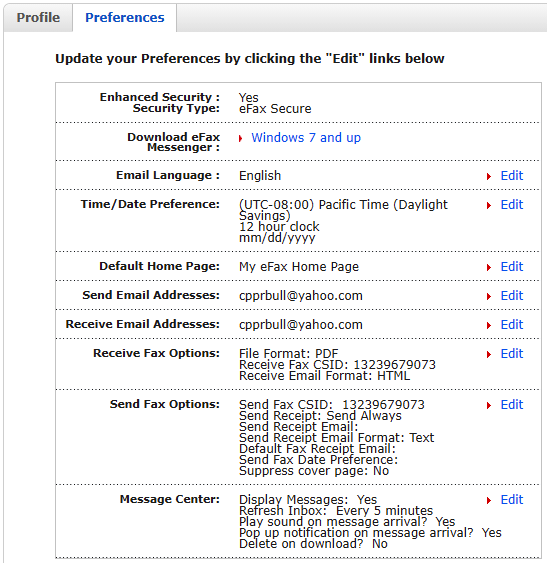
- Your preferred language for the emails sent to you from Aura eFax
- The time zone for your fax activities
- The time and date formats of your faxes
- The page displayed when you first log in: My Account or the Message Center
NOTE: The page you select only will only appear for the number currently displayed in the eFax Number(s) menu at the top-right of the page. (If you wish, you may select another number [if any], and select that number’s page to display upon login.)
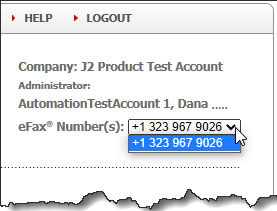
If you have more than one eFax number, they will be in this menu
- The email address(es) used for your inbound/outbound (Receive/Send) faxes
NOTE: Any inbound-fax address(es) you list will only apply to faxes sent to the number currently displayed in the eFax Number(s) menu at the top-right of the page. (If needed, you may select another number to list its addresses.)
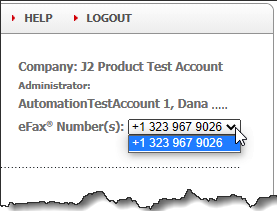
If you have more than one eFax number, they will be in this menu
- Other options for your inbound/outbound faxes: call-station ID (CSID) numbers, fax-receipt information, file/email/date formats and cover pages
- Message Center info
Receive, Open, Print, and Save Faxes
A fax received at your Aura eFax number arrives as an email notification in your external email account. You can click the Aura eFax link in the notification to log into your account and access the fax.
Note: The external email address used is either your Contact Email, shown on the Account Details > Profile tab, or any of the Receive-Email Addresses you enter on the Account Details > Preferences tab.
A copy of the email is also delivered to your Aura eFax Message Center, so you can access your faxes either way.
Open a Fax
Option 1: Log in from your external email account
- Click the Login or Aura eFax link in the message notification.
- In the User Login dialog that appears, enter your credentials to access your account.
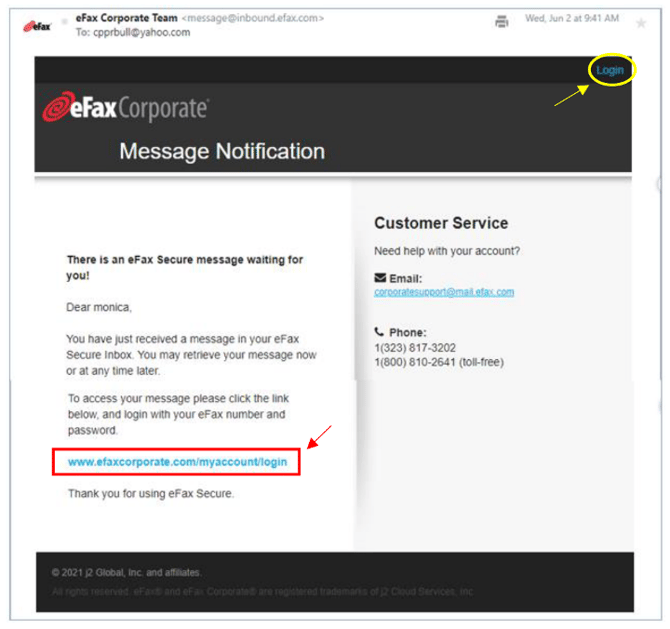
Fax message notification [10-fax-message-notification.png]
Option 2: Log in directly to the Message Center
Log into your account (see Log Into Your Account), then continue with Open the fax in the Message Center below.
Open the fax in the Message Center
- On the Home > My Account page, click the View Faxes tile (or the View Faxes link in the top navigation bar).
View Faxes tile [11-view-faxes-tile.png]
- On the Message Center > View Faxes page, click the relevant email (that is, the one from Aura eFax) to open it, then click the attachment to open the fax on a separate Fax Viewer tab.
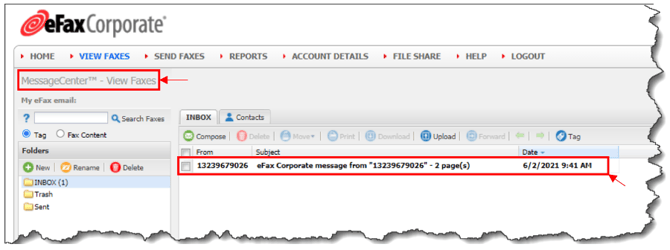
A received email in the Message Center, with an attached fax [12-message-center-inbox-with-fax.png]
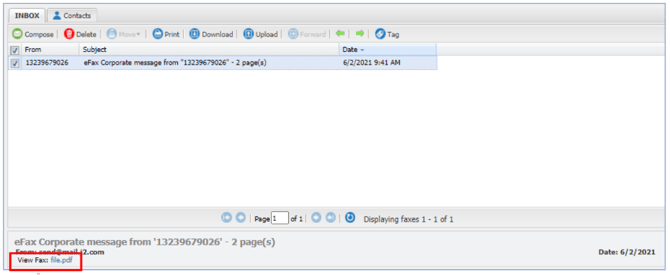
The opened email, showing the attached fax [13-opened-email-with-attached-fax.png]
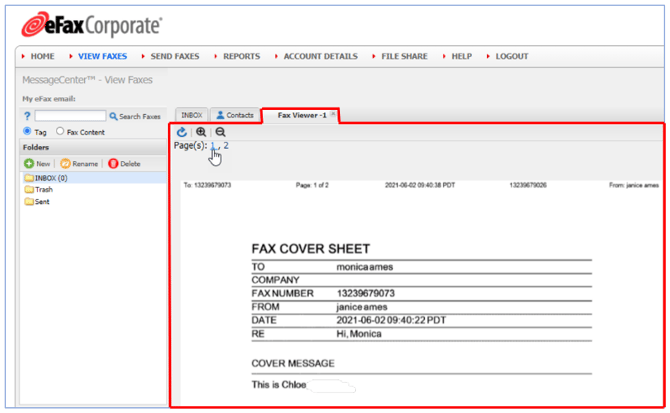
Page 1 of the fax [14-fax-page-1.png]
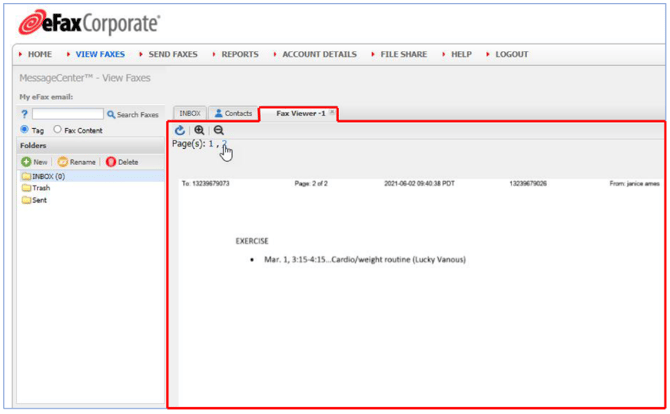
Page 2 of the fax [15-fax-page-2.png]
Print a Fax
Click the Print button on the Inbox tab toolbar.

Print button on the Inbox tab toolbar [16-inbox-toolbar-print-button.png]
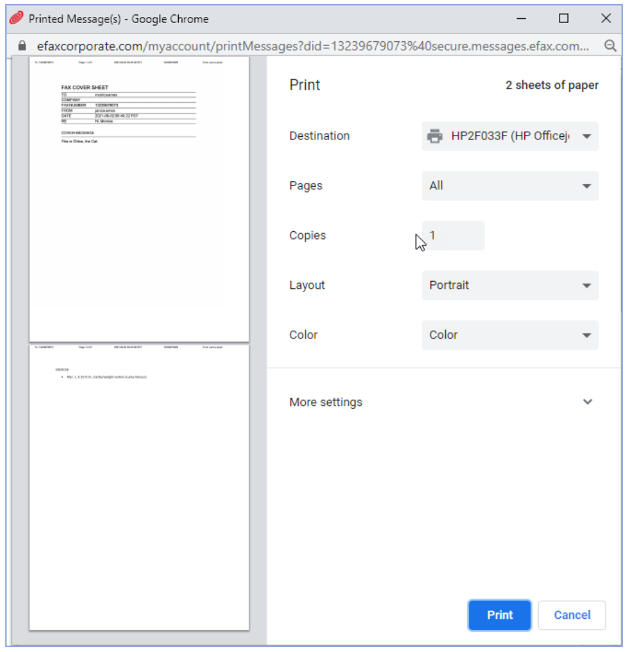
Printed Message(s) window [17-printed-messages-window.png]
Save a Fax to Your Computer
Click the Download button on the Inbox tab toolbar.

Download button on the Inbox tab toolbar [18-inbox-toolbar-download-button.png]
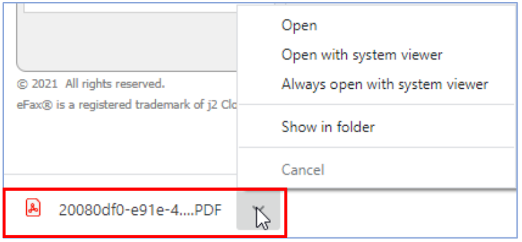
Downloaded fax (to save on your computer) [19-downloaded-fax.png]
Send FaxesThere are two ways you can send faxes: via your Aura eFax account or via your external email account.
Notes:
Send Faxes
There are two ways you can send faxes: via your Aura eFax account or via your external email account.
Notes:
- If you need to send faxes, please contact your account administrator to request this feature.
- The external email address used is your Contact Email, shown on the Account Details > Profile tab, or any of the Send-Email Addresses you enter on the Account Details > Preferences tab.
- You will receive an email receipt notifying you that your fax was sent successfully, or failed (with the reason for failure).
Send a Fax Via Your Aura eFax Account
- Log into your account (see Log Into Your Account).
- On the My Account page, click the SEND FAXES tile (or the Send Faxes link in the top navigation bar).
Send Faxes tile [20-send-faxes-tile.png]
The Send a Fax form appears.
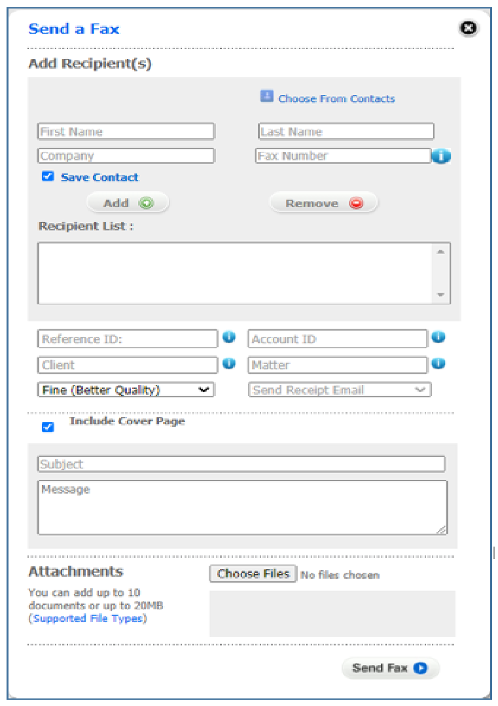
Send a Fax form [21-send-a-fax-form.png]
Notes:
- To open this form, you can also click the VIEW FAXES tile/link on the My Account page (the Message Center appears), then click the Compose button on the Inbox tab.
- If your account lets you receive faxes as well as send them, and you do not see the VIEW FAXES tile/link on the My Account page: click the ACCOUNT DETAILS tile/link, then the Preferences tab. In the Message Center section, click the Edit link, click the Yes button underneath Display the messages…, then click Update to save and exit.
Complete the Send a Fax form
- In the Add Recipient(s) section:
- Fill in or select the First Name, Last Name, Fax Number and Company of the first recipient. Alternatively, click Choose From Contacts to select a recipient from the Aura eFax address book; the fields auto-populate.
- For the Fax Number field, enter the number without spaces or dashes. For example, enter 1-202-555-1234 as 12025551234.
- If you manually fill in the contact’s information, you can check the Save Contact box to save it to your Contacts tab.
- Click Add. The recipient is listed in the Recipient List box.
- Repeat for each recipient you want to add (50 maximum).
- Fill in or select the First Name, Last Name, Fax Number and Company of the first recipient. Alternatively, click Choose From Contacts to select a recipient from the Aura eFax address book; the fields auto-populate.
- Optional fields:
- Reference ID: enter a name or description to identify the fax as belonging to a particular issue, case or campaign.
- Account ID: enter your billing-account number.
- Client: enter your company name.
- Matter: enter your client ID.
- Click the next drop-down arrow and select the desired quality of the fax transmission. Then use the Send-Receipt Email drop-down arrow to select the email address for delivering the confirmation receipt. You may see a default confirmation address; if a different address is needed, you can change it by updating your customer profile (see the online help).
- If you want to Include Cover Page (checked by default), fill in the Subject and Message fields.
Note: This step auto-attaches the default cover page. If you prefer to use your own, uncheck the box, leave the fields blank, and see Use Your Own Cover Page under Add Cover Pages to Faxes.
Then, attach your documents and send:
- To attach documents (20 MB maximum), click Choose Files, then locate and select the files. Click the Supported File Types link on the form to see the types of files you can choose (also listed under Supported Attachment Types below).
- Click Send Fax.
Notes: You can attach:
- Up to 10 documents, if not using a cover page
- Up to 9 documents, if using the default cover page
- Up to 9 documents, if using your own cover page (attach it first so it is placed ahead of any other attachment)
However many documents you attach, with or without a cover page (which is also considered an attachment), the maximum is 20 MB.
Send a Fax Via Your External Email Account
- Open a new email. In the To field, enter the recipient’s fax number followed by
@efaxsend.com. You can add up to 1,000 recipients. - Attach the files you want to fax.
- To include a cover page, see Add Cover Pages to Faxes below.
- Send the email.
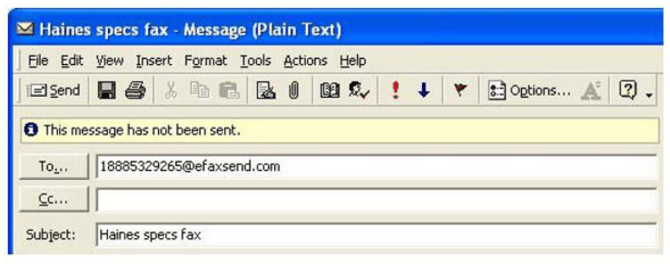
Creating an email to send a fax [22-creating-email-to-send-fax.png]
Fax number format
- US number, such as +1 323 555 1234: type
13235551234@efaxsend.com, where 1 is the country code, 323 is the area code and 5551234 is the fax number. - UK number, such as +44 (0)20 7555 1234: type
442075551234@efaxsend.com, where 44 is the country code, 207 is the area code and 5551234 is the fax number.
Note: You can attach up to 10 documents if not using a cover page, and up to 9 if you are. The maximum is 20 MB.
Supported Attachment Types
Your attachments (including the cover page) can be created in any of the following file formats:
|
Document type |
Versions |
Extensions |
Category |
|
Adobe Photoshop |
v3.0 and above |
PSD |
Graphics |
|
Adobe Portable Document Format |
All versions |
|
Cross-Platform |
|
Adobe Postscript |
All versions |
PS |
Cross-Platform |
|
Amiga Interchange File Format |
Raster Bitmap only |
IFF |
Graphics |
|
Comma-separated Values Format |
All versions |
CSV |
Spreadsheets |
|
Compuserve Graphics Interchange Format |
GIF87a, GIF89a |
GIF |
Graphics |
|
Corel WordPerfect |
v5x, 6, 7, 8, 9, X6 |
WPD, WP5, WP6 |
Word Processing |
|
eFax Messenger Document Format |
eFax Messenger |
EFX (outbound faxes only), HOT |
Cross-Platform |
|
Encapsulated Postscript |
All versions |
EPS |
Cross-Platform |
|
Hypertext Markup Language |
HTML only, with required base href tag |
HTM, HTML |
Publishing |
|
jConnect Messenger Document Format |
jConnect Messenger |
JFX |
Cross-Platform |
|
Joint Photographic Experts Group |
All versions |
JPG, JPEG |
Graphics |
|
Microsoft Excel |
97-2013 |
XLS, XLSX |
Spreadsheets |
|
Microsoft PowerPoint |
97-2013 |
PPT, PPTX |
Presentations |
|
Microsoft Publisher |
97-2013 |
PUB |
Publishing |
|
Microsoft Word |
Windows: v97, 2000, 2003, 2007, 2010, 2013. Mac: v4, 5.x, 95, 98 |
DOC, DOCX |
Word Processing |
|
Microsoft Word Template |
Windows: v97, 2000, 2003, 2007, 2010, 2013. Mac: v4, 5.x, 95, 98 |
DOT, DOTX |
Word Processing |
|
Microsoft Works Word Processor |
v4.x, 5, 6, 7, 8.x, 9 |
WPS |
Word Processing |
|
OpenDocument Drawing |
All versions |
ODG |
Graphics |
|
OpenDocument Presentation |
All versions |
ODP |
Presentations |
|
OpenDocument Spreadsheet |
All versions |
ODS |
Spreadsheets |
|
OpenDocument Text |
All versions |
ODT |
Word Processing |
|
PC Paintbrush Graphics |
All versions |
PCX |
Graphics |
|
Plain Text |
All versions |
TXT, DOC, LOG, ERR, C, CPP, H, SRC |
Word Processing |
|
Portable Network Graphics |
All versions |
PNG |
Graphics |
|
Quattro Pro |
v6 and above |
QPW, WB1, WB2, WB3 |
Spreadsheets |
|
Rich-Text Format |
All versions |
RTF |
Word Processing |
|
StarOffice Drawing |
All versions |
SXD |
Graphics |
|
StarOffice Presentation |
All versions |
SXI |
Presentations |
|
StarOffice Spreadsheets |
All versions |
SXC |
Spreadsheets |
|
StarOffice Text Documents |
All versions |
SXW |
Word Processing |
|
Tagged-Image File Format |
All versions |
TIF, TIFF |
Graphics |
|
Truevision Targa Format |
All versions |
TGA |
Graphics |
|
Visio Drawing |
v3 and above |
VSD, VSDX |
Graphics |
|
Windows Bitmap |
All versions |
BMP |
Graphics |
|
WordPerfect Graphics |
v2.0 and above |
WPG |
Graphics |
Add Cover Pages to Faxes
You can use the Aura eFax default cover page or your own.
Note: A cover page is considered an attachment. So, when sending a fax:
- Via your Aura eFax account: you can attach an additional 9 documents, whether you use the default cover page or your own.
- Via your external email address: you can attach an additional 9 documents, whether you use the default cover page or your own.
However many documents you attach, the maximum is 20 MB.
Use the Default Cover Page
Aura eFax automatically formats a cover page for you when you send a fax via the Message Center or via your external email account.
Sending via the Message Center
Check the box next to Include Cover Page, then fill out the Subject and Message fields. (See Send a Fax Via Your Aura eFax Account.)
Sending via your external email account
-
The default cover page auto-populates from the information entered in the email. (See Send a Fax Via Your External Email Account.)
-
Any text in the email's body will also appear on the cover page.
NOTE: If you don't want this text to appear on the cover page, see Additional Cover-Page Options in the online help.
-
The Subject of the email will be the Subject of the cover page.
-
In the To field of the email: Use your eFax Corporate fax number as the email address, as shown in this example: 13235551234 @efaxsend.com.
Cover-page codes
To indicate the recipient, sender and company names on the default cover page, or to turn the cover page on or off, enter the appropriate two-letter codes shown below.
|
Cover-page code |
Format |
Description |
|
|
|
Enters the To name on the cover page. |
|
|
|
Enters the From name on the cover page. |
|
|
|
Enters the Company name on the cover page. |
|
|
|
Turns the cover page on or off. |
If you use any of the codes:
- Place them between the fax number and the @ symbol in the email address. Example:
13235551234/cp=off@efaxsend.com. If entered in the To line of your email, this turns the cover page off. - If using more than one code, separate them with a slash (/). Example:
13235551234/cp=on/to=John_Doe/fr=Jane_Doe@efaxsend.com. If entered in the To line of your email, this turns the cover page on and auto-populates John Doe in the To line and Jane Doe in the From line. - For a company or individual’s name in the address line, use the underscore (_) in place of spaces. Example:
13235551234/cp=on/to=John_Doe/co=Doe_Sprockets@efaxsend.com. If entered in the To line of your email, this turns the cover page on and auto-populates John Doe in the To line and Doe Sprockets in the Company line.
If any of the codes’ formats are not understood by Aura eFax, the fax will still go through if the recipient’s fax number is valid.
Use Your Own Cover Page
If you prefer, you can use a cover page of your own design (see Supported Attachment Types for supported formats) on a fax sent via the Message Center or your external email account.
IMPORTANT: To be sure it is the first page transmitted, attach the cover-page file as the very first attachment.
To use your own cover page:
- First, turn off the default cover page.
- If sending via your Aura eFax account: uncheck the Include Cover Page box on the Send a Fax form.
- If sending via your external email account, do either of the following:
- Enter the cp=off code in the To field of the email (see Cover-page codes above), or
- Leave the body of the email blank. This includes removing any automatic signature(s) you may have set (see Sign, or Add an Image/Comments to, a Fax or Uploaded Document in the online help).
- Second, attach your cover page first, then any other documents.
Note: If you do not want to remove the signature, or you cannot remove it (because it is set at the server level), enter the {nocoverpage} tag at the beginning of the first line of the email’s body text. The signature(s) will remain in the body of the email, but no cover page will be attached.
Note: See the first note under Add Cover Pages to Faxes for the number of documents (and maximum MB) you can attach when using your own cover page.
Additional Information
There are other things you can do when creating faxes:
Sign, or Add an Image/Comments to, a Fax or Uploaded Document
For information on how to sign, or add images or comments to, a fax, see the topic of the same name in the online help.
Special Email Tags for Fax Delivery
Tags are special commands you can include that direct Aura eFax to respond in a certain way. If you are sending a fax from your external email account and using the default cover page, you can use these two cover-page tags:
{nocoverpage}: disables the default cover page (that is, directs Aura eFax not to fill in its template). Type this tag at the beginning of the first line of the text in the body of your email.{showbodytext}: directs Aura eFax to send the text in the body of your email as a separate fax page in front of any attachments. Type this tag at the beginning of the first line of the text in the body of your email.