
To assign numbers to users, complete the following steps:
1. Navigate to "Users" in the lefthand dashboard of Aura Connect.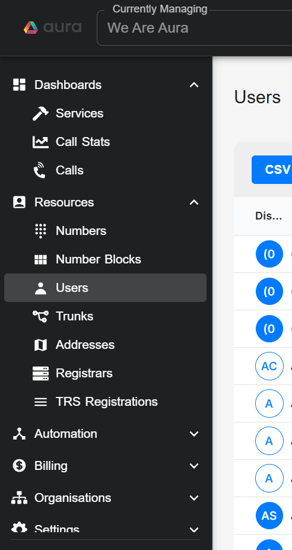
2. Make sure the user you'd like to assign a number to says "Not Allocated," rather than "Not Licensed."If not licensed, the Teams license will need to be granted before the user assignment can be made. If a user has two entries or rows, select the one that has an email address listed.
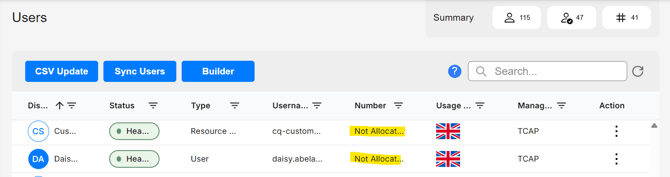
3. Next, click on the three dots in the furthest right column of the user's row to edit. The following pop-up will appear. Make sure "Managed by TCAP" is turned on, and select the number from the available ones in the drop down list. Make sure to select "Save."
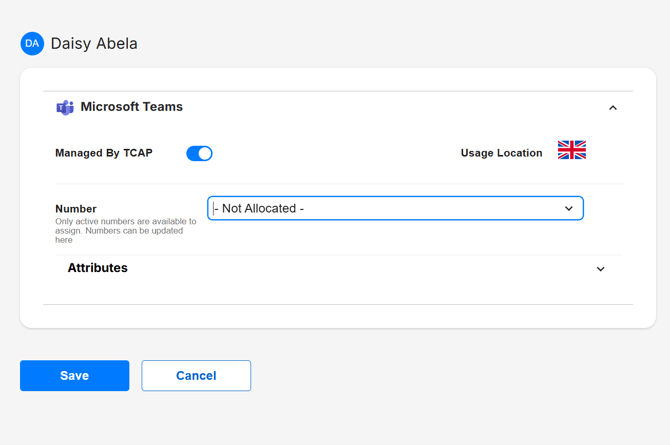
4. If your company is opting for Direct Routing instead of Operator Connect, you may see the option to select the user's Voice Policy and Dial Plan in the pop-up shown in the screenshot above. These selections will depend upon the country the DIDs originate from. Typically, the standard option should be selected unless the users will be expected to make international calls.
Please contact customersuccess@weareaura.com if you need to make several user assignments and would prefer not to make these one-by-one. Our team can assist you in completing a CSV upload.